
Remove people from photo
Tourists in the background of a travel shot, a stranger walking through a family photo. Paint the whole person and their shadow.
Paint over the things you don't want — a passer-by, a cable, clutter — and AI fills the space with background that fits the scene.
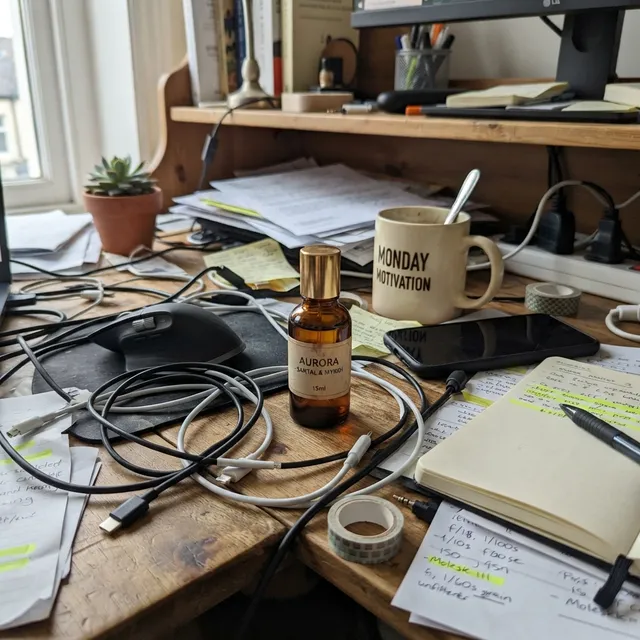
Upload a JPEG, PNG or WebP, then paint over the object or drag a box around it. Only your selection is sent as the area to replace; everything else is kept as unchanged as possible.
Upload a photo, then paint over what you want removed.
Upload a photo
JPEG, PNG or WebP · up to 20 MB
Tip: sign in before you paint. The sign-in redirect reloads the page and clears your photo and selection.
8 credits per removal (provisional while we test the price). Failed runs are refunded.
Only use photos you have the right to edit. Don't remove watermarks, credits or other people's marks.
Many AI editors only take a sentence like "remove the cables" and redraw the whole picture. Here your brush strokes become a mask with the same width and height as your photo, and the model is told to replace only that area.
1Original photo
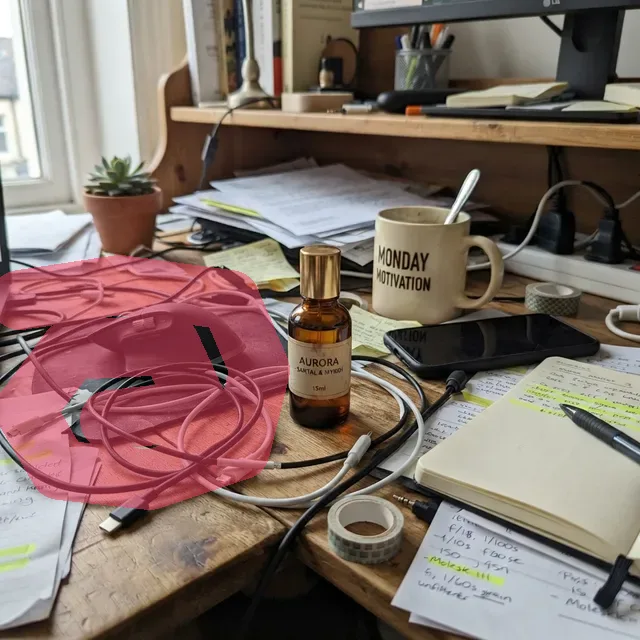
2Your selection (painted in red)
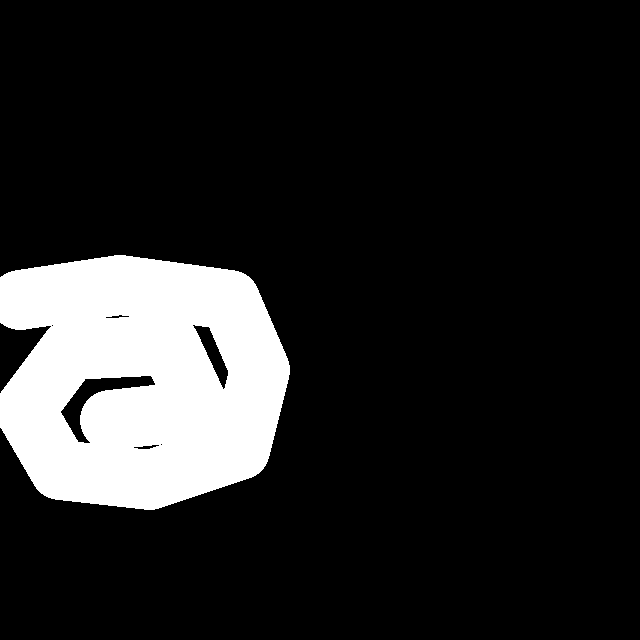
3Mask built from it (same 640 × 640 size; white = area to replace)
These are the selection and mask this page's own code builds for that photo. The removal itself is done by the AI model after you start, so no output is shown here.
There is no clone stamp or healing brush to learn. Paint a little past the edges of the object, include its shadow, and the model reconstructs what should be behind it from the surrounding pixels. Box mode is faster for anything rectangular, like a sign or a parked bike.
Tourists in the background of a travel shot, a stranger walking through a family photo. Paint the whole person and their shadow.
Power lines across the sky, cables on a desk, a lamp post in front of a building. Thin objects work best with a slightly wider brush.
A bin on the street, a cup on the table, a bag on the floor of a listing photo. Remove small distractions without restaging the shot.
Marks on a wall, a stain on a tablecloth, dust on a product background. Paint just the spot so the texture around it stays.
The selection is turned into a mask with exactly your photo's width and height, so the area to replace lines up pixel for pixel.
The model is instructed to keep everything outside your selection unchanged, and it does so as far as it can. It is AI editing, not a pixel-perfect copy, so check faces and fine text.
Credits are taken when a removal starts. If the job fails or returns no image, they go back to your balance automatically.
While a removal is running, the photo and selection are locked, so switching pictures can't start a second paid job by accident.
Upload your photo
JPEG, PNG or WebP up to 20 MB, from 64 to 8192 pixels on a side. Sign in with Google first so your selection isn't lost on the sign-in redirect.
Paint over or box the object
Use the brush for irregular shapes and the box for rectangles. Cover the whole object plus its shadow. Undo or clear if you overshoot.
Remove it and download
Start the removal; it usually takes under a minute. Compare with the original, then download the PNG or adjust your selection and try again.
Paint over what you don't want and let AI fill the gap. Sign in to spend credits; failed runs are refunded.
Remove an object
It is a tool that deletes something from a photo and fills the area with background that matches the surroundings. On EditBright you mark the object with a brush or a box; that selection is sent as a mask together with the photo to a mask-based image-edit model.
Upload the image, paint over the object (or drag a box around it), sign in and press Remove object. When the result appears, compare it with the original and download the PNG.
Yes. Paint over the whole person, including feet and shadow. Small figures in the background work best; removing a large person in the foreground leaves more for the AI to invent, so results vary.
The model is told to keep unpainted areas unchanged and keeps them as unchanged as possible, but this is AI image editing, not a pixel-perfect copy. Small shifts in color or detail outside the selection can happen, so check faces, text and edges before you use the result.
No. You can open the page and try a selection without an account, but running a removal needs Google sign-in and credits because the model is paid per use. The free tools on EditBright are the photo editor, background remover and photo enhancer.
The current price is 8 credits per removal. It is provisional while we measure the model's real cost and may change; the tool always shows the price before you start. A new account's daily reward may not cover one removal on the first day.
It works the same way from your side: brush over something and it disappears. The difference here is that your selection is sent as a real mask, not just described in words, so the model knows exactly which pixels to replace.
JPEG, PNG or WebP, up to 20 MB, from 64 to 8192 pixels on a side. The result is a PNG.
If the job fails or returns no image, the credits are refunded automatically. A finished result is charged even if you don't like it, so for a better second try paint slightly wider, include shadows, or split a large object into a smaller selection.
Yes. Your photo and the selection mask are uploaded to our storage and sent to our AI model provider to process the removal. See the privacy policy for how long files are kept.